

Members
For admins, the roles, the company's invite link, phone invites, how to change roles, remove people and the seat limit.
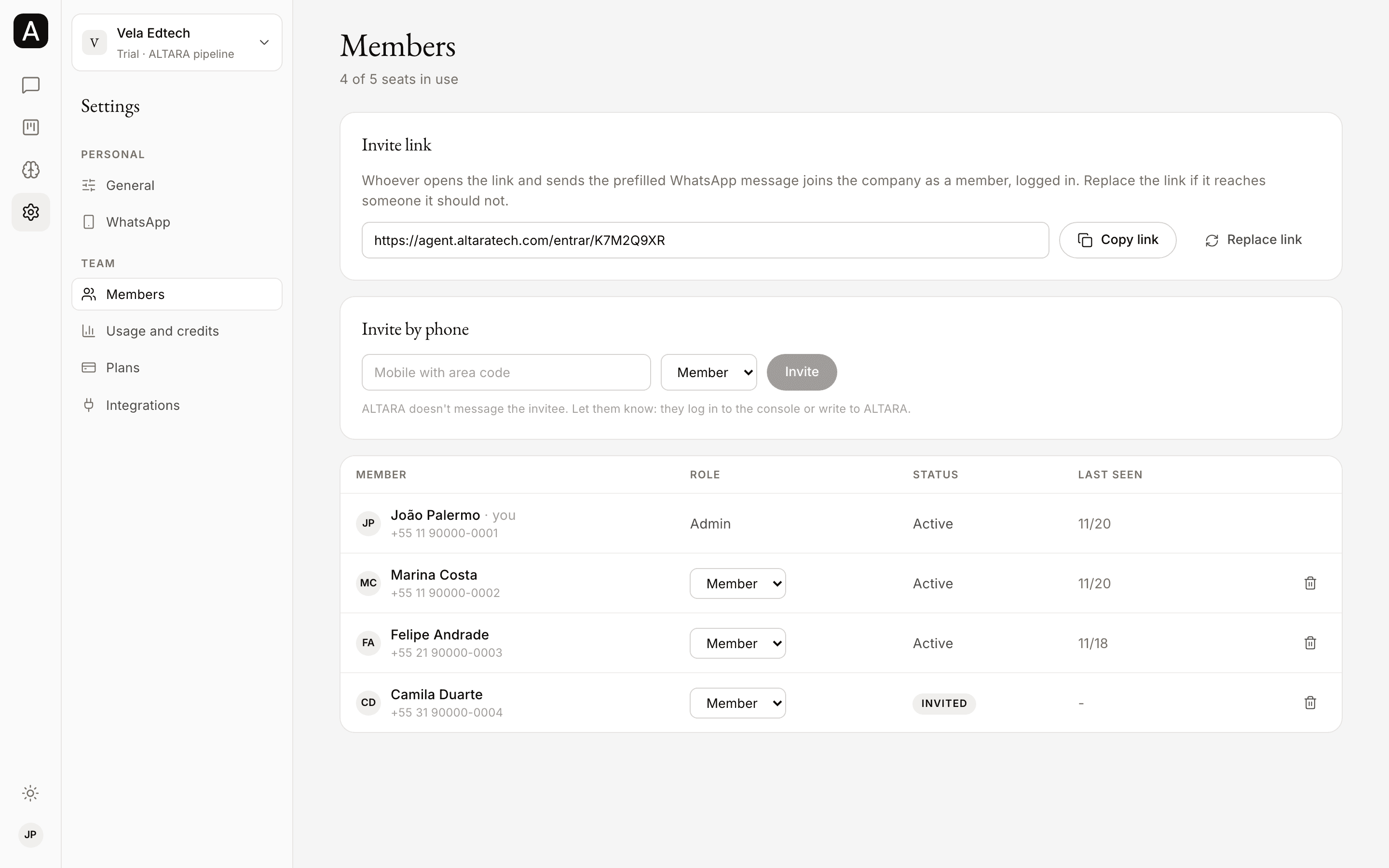
Your company's team lives in Settings → Members. Every member sees the list. Only admins see the invite link and the phone invite, and only they change roles and remove people.
Roles
| Role | What they can do |
|---|---|
| Member | Talk to ALTARA on WhatsApp, log in to the console, see the company's accounts, move accounts, add notes and tasks, and see the member list. |
| Admin | Everything a member does, plus: see and replace the invite link, invite by phone, change roles, remove members and rename the company. |
A company always needs at least one admin. The last admin can't be removed or made a member. Whoever asks for access in the console and is approved becomes the company's first admin.
The company's invite link
The Invite link block shows your company's link, in the form agent.altaratech.com/entrar/<code>. Whoever opens the link and sends the prefilled WhatsApp message joins the company as a Member, already logged in to the console, without needing your approval. See what they go through in Join your company.
- Copy link copies the link so you can send it to your team by WhatsApp or e-mail.
- Replace link makes a new link. The old one stops working at once: "Link replaced. The old one no longer works." Replace the link if it reaches someone it shouldn't. People who already joined stay in the company.
Invite by phone
Use a phone invite when you want to choose the person's role before they join, for example to invite another admin.
Enter the number
In Invite by phone, type the mobile number. A Brazilian number goes with its area code; for any other country, start with + and the country code.
Pick the role
Member or Admin.
Click Invite
The person shows up in the list as Invited.
Let them know
Send them agent.altaratech.com or ALTARA's number. The invite takes effect when they log in to the console with a code or write to ALTARA on WhatsApp. From then on, their status is Active.
ALTARA does not message the number you invite. It is up to you to let the person know.
If the console says "I could not invite. The number may already be in the company, or the seats ran out.", check whether the person is already in the list and how many seats are in use.
The member list
For each person, the list shows:
- Member: their name and WhatsApp number. "No name yet" means they haven't set their name in Settings → General yet. Your own row says "you" next to your name.
- Role: Member or Admin.
- Status: Active or Invited.
- Last seen: the last day they used the console.
Change someone's role
In the Role column, pick Member or Admin on the person's row. The change takes effect at once. You can't change your own role: ask another admin.
Remove someone
Click the bin icon at the end of the person's row. The console removes them right away, without asking for confirmation, and says "Member removed. Their sessions were ended."
After that:
- they are logged out of the console on every browser;
- ALTARA stops answering them on WhatsApp on your company's behalf;
- their seat is free;
- the accounts, notes and history they created stay in the company.
Removed someone by mistake? Invite them again.
Seat limit
At the top of the page, you see how many seats are in use, for example "3 of 5 seats in use". During the trial, the page shows "N members, no seat limit in the trial", unless the ALTARA team set a limit for your company.
A phone invite takes a seat even before the person joins. When every seat is in use:
- the Invite button is turned off and the page says "Every seat in the plan is in use. Change plan to invite more.";
- whoever opens the invite link sees that the company already uses every seat in its plan.
To free a seat, remove someone or change plans. See Plans.
Accounts
Your company's pipeline in the console, as a board by stage and a filtered list, each account's page, and how to move an account to another stage.
Settings
Your name, language, theme, time zone and sessions in Settings → General, the connected number in Settings → WhatsApp, and where to see usage and plans.