

Join your company
How to join your company with its invite link, and what ALTARA sends to your WhatsApp afterwards.
Every company on ALTARA has one invite link, in the form agent.altaratech.com/entrar/<code>. Whoever opens the link and sends the prefilled WhatsApp message joins the company as a Member, with no approval to wait for.
Ask an admin of your company for the link (it lives in Settings → Members), or ask the ALTARA team.
Step by step
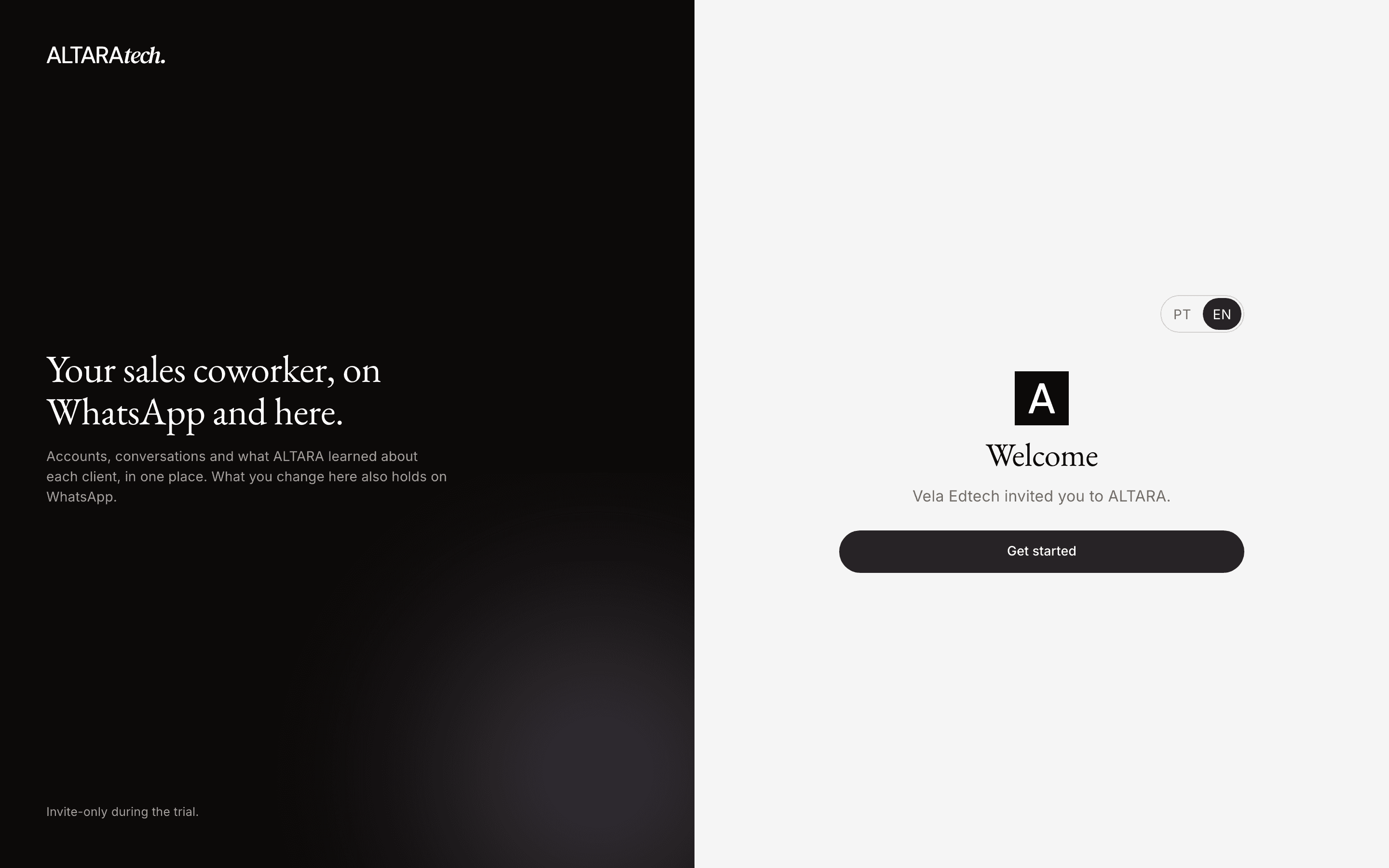
Open the invite link
The page shows Welcome and the name of the company that invited you. Tap Get started. At the top, PT and EN switch the page's language.
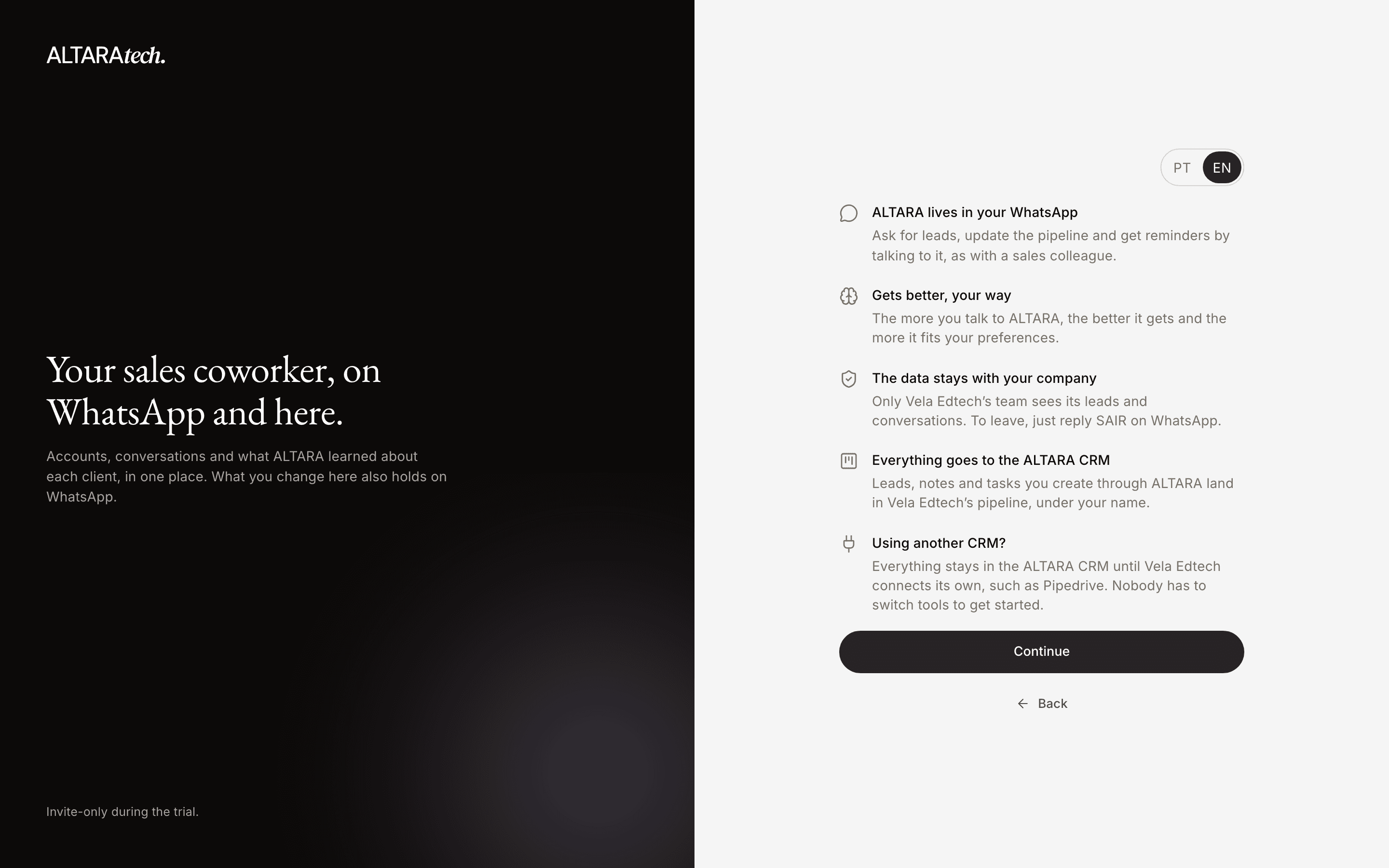
Read how ALTARA works
The page sums it up in a few lines: ALTARA lives in your WhatsApp, it gets better the more you talk to it, the data stays with your company, and the leads, notes and tasks you create go to the company's CRM. Tap Continue.
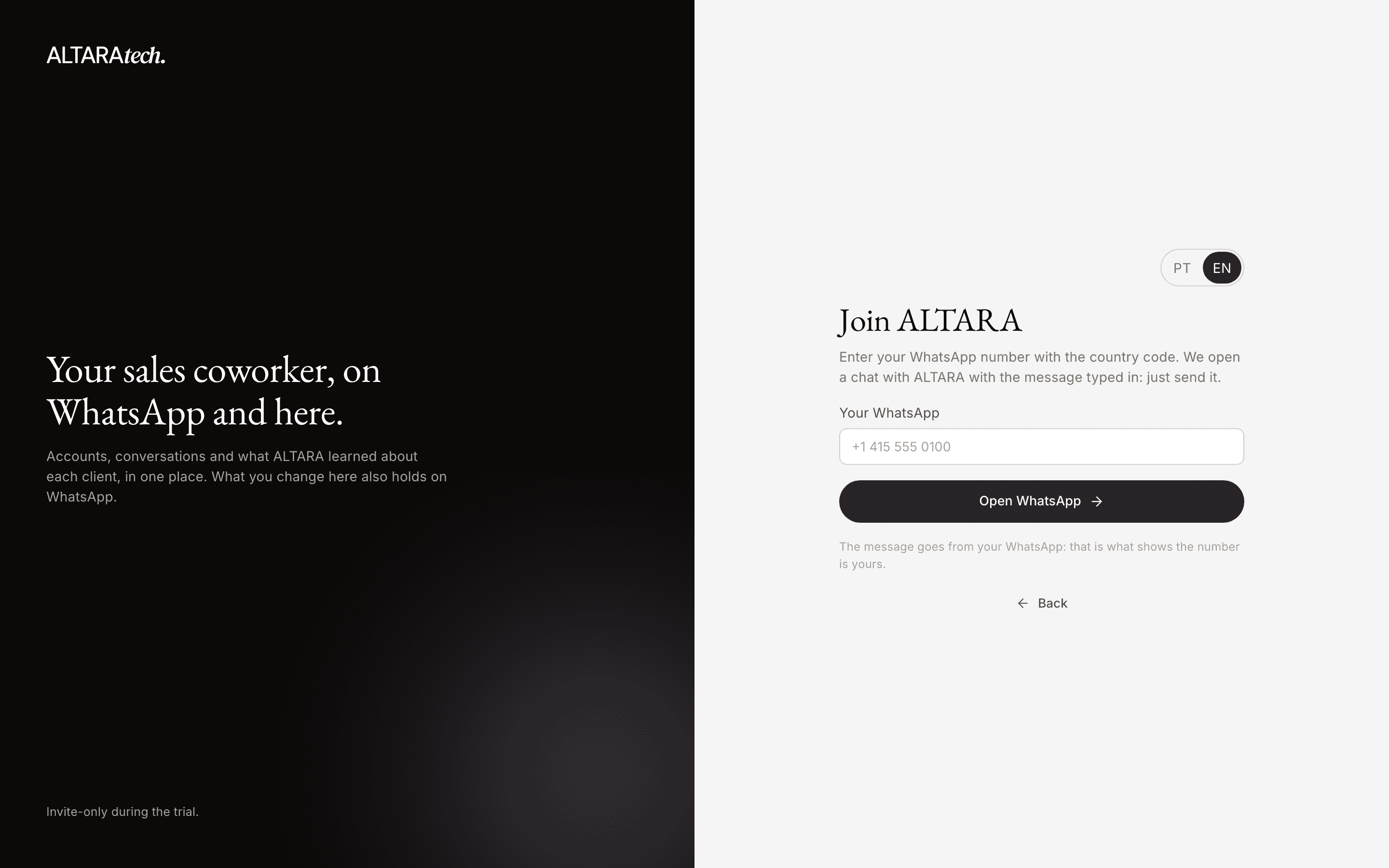
Enter your WhatsApp number
In Your WhatsApp, type your number with its country code, for example +55 11 99999-9999. Use the WhatsApp number you will use with ALTARA, and tap Open WhatsApp.
Send the message that comes typed in
WhatsApp opens a chat with ALTARA, with a message like this:
Hi, Altara. I would like to join the <company> team. (ref <code>)Send it from the same number you typed. You can change the start of the message, but keep the end, (ref <code>): that is what links the message to you.
Come back to the page
The page logs you in by itself and opens the console on Accounts. On WhatsApp, ALTARA confirms you joined the team.
If WhatsApp does not open by itself, the page shows the message with a QR code and two buttons:
Tap Open in WhatsApp and send the message. Or tap Copy message and paste it into your chat with ALTARA.
The message is valid for 10 minutes. Typed the wrong number? Tap Use another number.
What you get on WhatsApp
As soon as your message arrives, ALTARA replies to you only. Its confirmation messages are in Portuguese for now. The first one reads:
Olá, agora seu número faz parte da equipe da (your company) na ALTARA, e o Chrome (Windows) já está conectado. Salve este número para me achar depois. Se não foi você, responda SAIR.
It says your number is now part of the company's team, that the browser where you opened the link (here, Chrome on Windows) is logged in, and asks you to save the number. If it wasn't you, reply SAIR. What comes next depends on your company.
If your company's market is set up
When the ALTARA team has already set up your company's website or market, you get up to 3 first leads:
- ALTARA says it will read your company's website to understand who buys from you.
- It sums up what the company sells and to whom, lists 3 or 4 numbered buying signals (for example a public tender, news of an expansion or a job opening) and asks which to use. Reply with the numbers, or name another signal or a change to the profile, such as size, region or sector.
- ALTARA says it is searching and, within 5 minutes, sends up to 3 companies in your market. Each comes with the kind of signal, its date, what changed, the source link and, when it finds one, a person to talk to (name and role).
- It asks whether to add the leads to the CRM. Reply sim (yes) for all of them, or say which ones you want. Nothing goes into the CRM before your answer, and it waits as long as it takes.
Sometimes ALTARA skips the signals question and starts the search right away. ALTARA does not make up leads: if it can confirm fewer than 3 companies at the source, it sends fewer, and it tells you when it found none. Afterwards, you see the leads in Accounts, in the console.
If not
ALTARA introduces itself and you can start talking to it. See The agent.
If something goes wrong
The page says "(company) already uses every seat in its plan. Ask an admin of the company to free one." If you sent the message anyway, ALTARA replies on WhatsApp with the same notice and the number of seats in the plan. An admin can free a seat in Settings → Members or change the plan. See Plans.
The reply reads "Esse código foi gerado para outro número". You sent the message from a different WhatsApp than the number you typed. Open the invite link again and enter the number of the WhatsApp you are using.
The link is incomplete or an admin replaced it. Ask whoever invited you for a new one.
The reply reads "Esse código de entrada não vale mais". The message is older than 10 minutes or was already used. Open the link again to get a new one.
That's fine. The link only logs you in to the console, and ALTARA replies "✓ Pronto, você entrou na ALTARA no (browser)", meaning you are logged in.
Reply SAIR on WhatsApp. It logs your number out of the console in every browser. See Log in to the console.
On WhatsApp, ALTARA only talks to you and your team. To learn what happens to your company's data, see Safety and data.
Whoever joins with the link joins as a Member. To become an Admin, ask an admin of your company: they change your role in Settings → Members. See Members.