

Log in to the console
How to log in to the console with a code sent from your WhatsApp, how long a session lasts, how to log out and how to ask for access.
The console has no password. To log in, you send a code from your WhatsApp, and the browser that showed the code logs in by itself. Only you can send a message from your WhatsApp: that is what proves the number is yours.
How to log in
Open the console
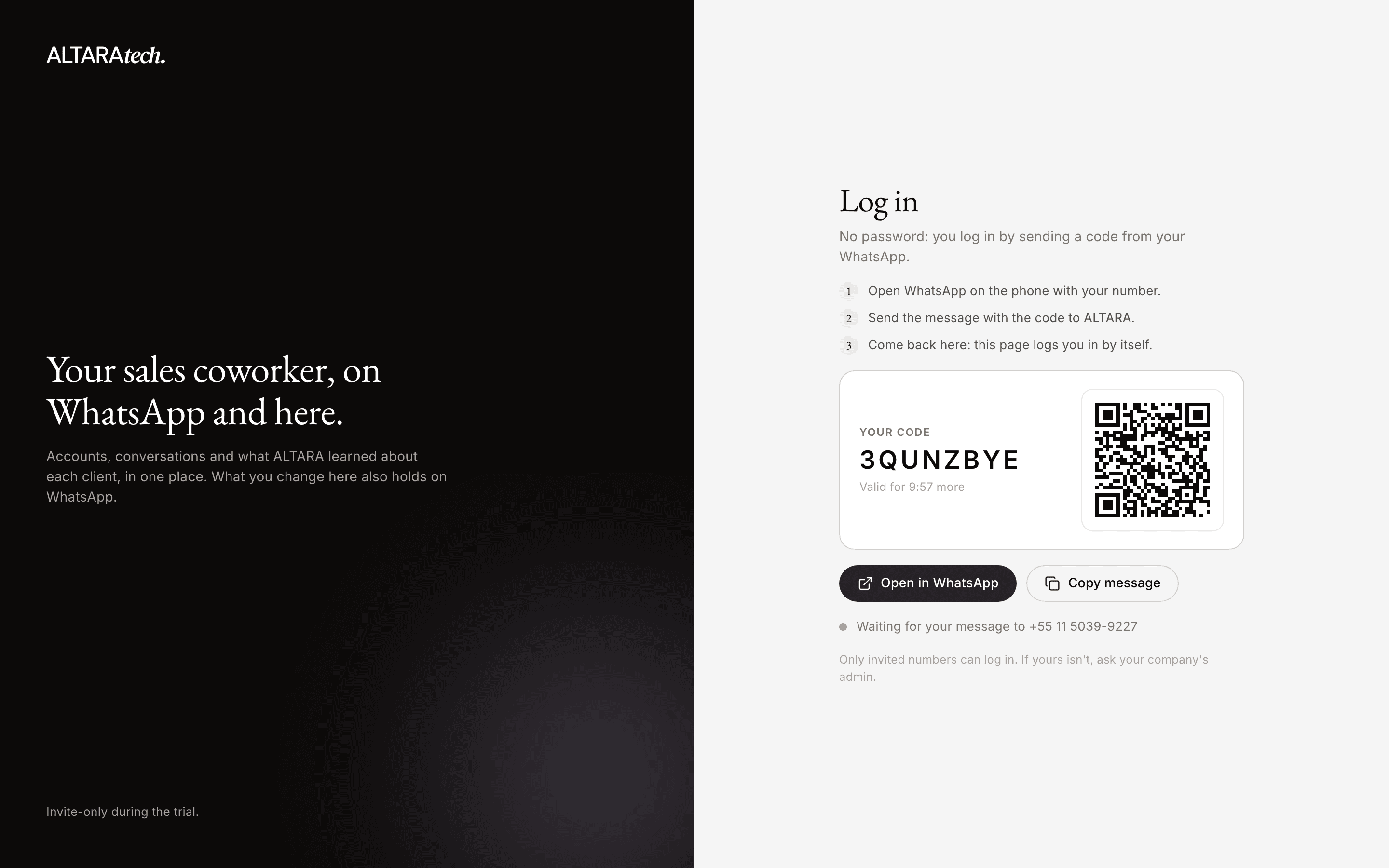
Go to agent.altaratech.com. The Log in page shows Your code, 8 letters and digits.
Send the code on WhatsApp
From the WhatsApp with your number, send ALTARA this message:
Entrar ALTARA: <code>The message stays in Portuguese whatever your language. The page types it in for you. See below how to send it from a phone or a computer.
Come back to the page
While it waits, the page shows Waiting for your message to and ALTARA's number. When the message arrives, the page logs you in and opens the console.
Point your phone's camera at the QR code on the page. It opens WhatsApp with the message typed in: just send it. If you use WhatsApp on your computer with the same number, you can also click Open in WhatsApp.
You can also tap Copy message and paste it into your chat with ALTARA. On WhatsApp, ALTARA confirms which browser logged in. The confirmation is in Portuguese for now:
✓ Pronto, você entrou na ALTARA no Chrome (Windows). Se não foi você, responda SAIR.
It means you are logged in on Chrome on Windows, and that you should reply SAIR if it wasn't you.
Send the code from the number you use with ALTARA. You log in as the owner of the number that sent the message.
How long a code lasts
- Each code is valid for 10 minutes and works once. The page shows Valid for and the time left.
- When it expires, the page says "Code expired. Reload the page to get a new one." Reload and use the new code.
- If you send an expired or wrong code, ALTARA replies on WhatsApp "Esse código de entrada não vale mais…": the code is no longer valid, open the page again to get a new one. That reply comes at most once an hour.
- If you send more than 5 codes in 10 minutes, ALTARA stops reading the next ones for a while. Wait a few minutes and try again.
How long a session lasts
Once you are in, you stay logged in on that browser. The session ends:
- after 30 days without using the console;
- 90 days after you logged in, even if you use it every day;
- when you log out of the console;
- when you reply SAIR on WhatsApp;
- when an admin removes you from the company.
To get back in, just log in again with a new code.
How to log out
- On a computer: click your avatar, with your initials, at the bottom of the left-hand bar. It is labelled Log out.
- On a phone: tap the menu button on the left of the top bar, then Log out.
- On every other browser: in Settings → General → Sessions, click End the other sessions. The browser you are on stays logged in.
- On every browser at once: reply SAIR on WhatsApp (the word is the same in every language). ALTARA confirms, in Portuguese, that you are logged out of every browser and can log in again with a new code.
SAIR only logs you out of the console. You stay in your company and keep talking to ALTARA on WhatsApp.
Ask for access
If your number is not in any company on ALTARA yet, you can still log in with a code, but the console only shows the Ask for access page.
- Fill in Company and Your name.
- Click Ask for access. The page shows Request sent.
- The ALTARA team reviews the request. Once they approve it, your company is created on the ALTARA CRM and you are its admin.
- Open agent.altaratech.com again, or reload the page, to enter the console.
If the request is not approved, the page says "The previous request was not approved. If that was a mistake, send a new one."
If your company already uses ALTARA, don't ask for access: each approved request creates a new company. Ask an admin for the invite link and follow Join your company.
If you belong to more than one company
You log in once and switch companies in the console or on WhatsApp. See Switch companies.
Changing your WhatsApp number
Changing your number from the console is not available yet. For now, you always log in with the number you joined the company with. If you changed numbers, talk to the ALTARA team.