

Accounts
Your company's pipeline in the console, as a board by stage and a filtered list, each account's page, and how to move an account to another stage.
In Accounts, you see your company's pipeline. These are the same accounts ALTARA works with on WhatsApp: a lead it creates there shows up here, and what you change here holds there. On WhatsApp ALTARA talks about leads; in the console, each lead is an account.
To open it, click Accounts in the left-hand bar (on a phone, in the bottom bar). There are two views: Board and List.
Board
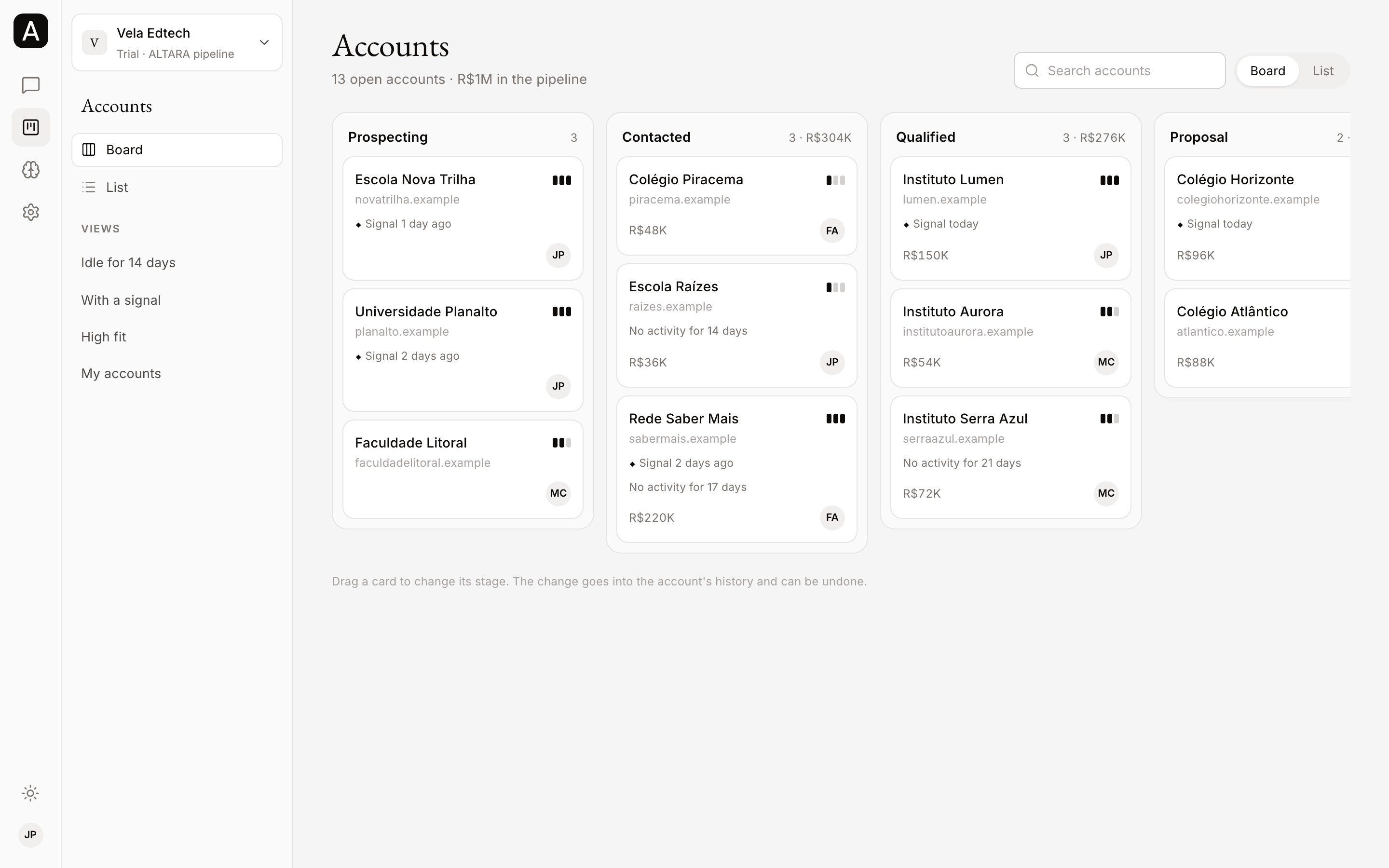
The board has one column per stage, with the number of accounts and their total value. A new company on the ALTARA CRM starts with the stages Prospecção, Contato, Qualificação, Proposta, Negociação, Ganho and Perdido (prospecting, contact, qualification, proposal, negotiation, won and lost). At the top, the page shows how many accounts are open, the total value in the pipeline, and the Search accounts box.
Each card shows:
- the account's name and website;
- its fit, as three bars: three for High fit, two for Medium fit, one for Low fit. An account with no fit set shows as Medium fit;
- ◆ Signal N days ago, when the account has a recorded signal;
- No activity for N days, when an open account has been idle for 14 days or more;
- the value and the owner's initials.
Click a card to open the account.
Move an account to another stage
Drag the card to the new stage's column.
You can also change the stage on the account's page, with the Stage: (name) selector.
After the move, a notice says "(account) moved to (stage)" with an Undo button. Click it to move the account back.
What you do in the console is your confirmation. Moving an account, adding a note or creating a task takes effect at once, without ALTARA asking first, and goes into the account's History with your name, the date and the console channel.
List
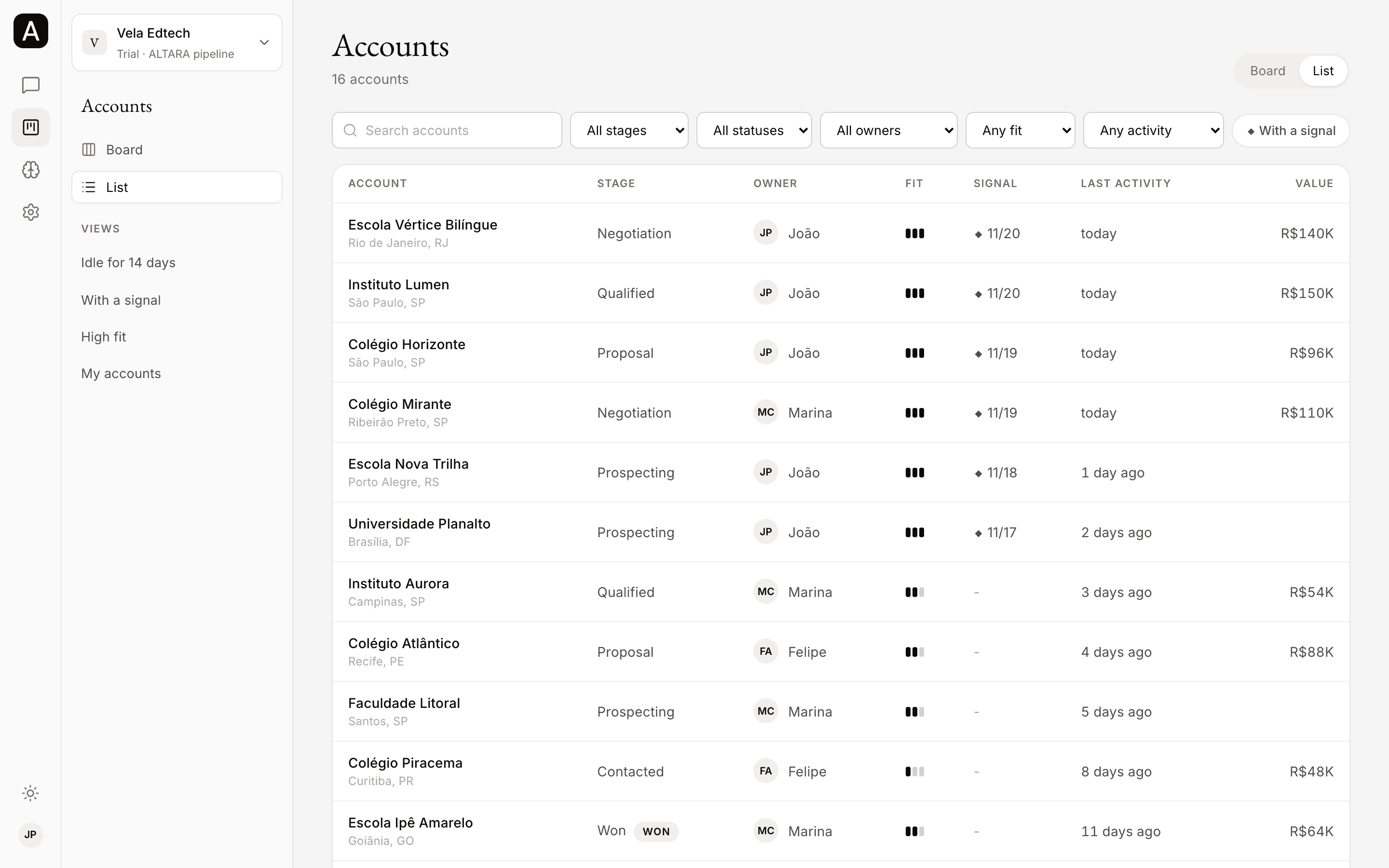
The list shows the most recently active accounts first, in the columns Account, Stage, Owner, Fit, Signal, Last activity and Value. To filter, use:
| Filter | What it does |
|---|---|
| Search accounts | Searches the account's name, website, headquarters and segment. |
| Stage | Shows one stage only. |
| Status | Open, Won or Lost. |
| Owner | Shows one teammate's accounts. Use it to see only yours. |
| Fit | High fit, Medium fit or Low fit. |
| No activity | Idle for 7 days, 14 days or 30 days. |
| ◆ With a signal | Only accounts with a recorded signal. |
Clear filters takes you back to the full list.
The filters live in the page's address. Bookmark the page to come back to the same view, or send the link to someone on your team. Only people in your company can see the accounts.
In the sidebar, the Views open the list already filtered: Idle for 14 days, With a signal and High fit.
The account page
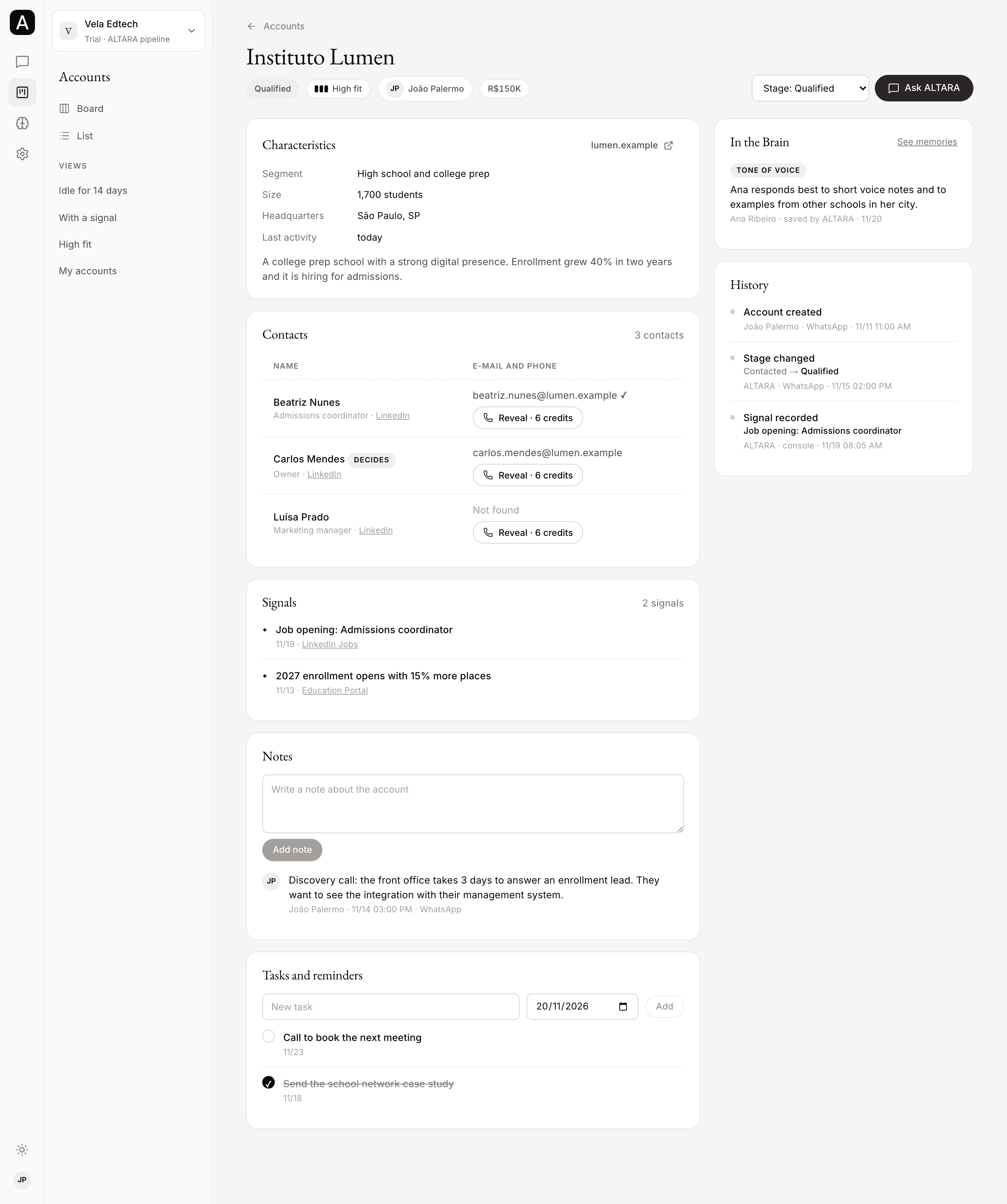
At the top are the stage, a Won or Lost tag when that applies, the fit, the owner and the value. Next to them are the Stage: (name) selector and the Ask ALTARA button, which opens a chat in the console. Chatting in the console is coming soon: for now, ask about the account on WhatsApp. See Chatting in the console.
Below, the page has these blocks:
- Characteristics: the website, Segment, Size, Headquarters, Last activity, the account's description, and Reason lost when the account was lost.
- Contacts: name, title, LinkedIn, e-mail and phone. People who make the buying decision carry the Decides tag. The ✓ next to an e-mail means Verified e-mail.
- Signals: each signal with its date and source link, such as a job opening or a news story.
- Notes: type in Write a note about the account and click Add note. Each note shows who wrote it, when, and where (WhatsApp or console).
- Tasks and reminders: type in New task, pick the date and click Add. Click the box next to a task to mark it done, and again to reopen it.
- In the Brain: will show what ALTARA learned about the account, such as a contact's tone of voice, once the Brain arrives. For now it stays empty.
- History: every change to the account, with who made it (a teammate or ALTARA), where (WhatsApp or console), the date and time. For a stage change, it shows before and after.
Contact phone numbers
A contact's phone shows when your company already has that number. To look up a new phone number, ask ALTARA on WhatsApp. In the console, the Reveal button does not look up new numbers yet and spends no credits: if the number is not in the company yet, the console says "This phone is not in the company yet. Ask the agent on WhatsApp to look it up." See what a phone number costs in Costs.
Reminders you create on WhatsApp don't show on the account page yet. They still reach your WhatsApp on time. See Reminders.
If your company uses Pipedrive
When your company's pipeline lives in Pipedrive, the console shows the pipeline's deals with their stage, status, main contact, notes and activities. Moving an account, adding a note or creating a task in the console writes straight to your Pipedrive.
A few things don't show in the console yet for Pipedrive companies: the value, the owner, signals, history and the date of the last activity. Look them up in Pipedrive itself. A Pipedrive activity is also marked done there: the console says "This task lives in Pipedrive: mark it done there."
To see where your company's pipeline lives, see Integrations.